|
|
||
|---|---|---|
| assets | ||
| lsp | ||
| lua | ||
| .DS_Store | ||
| .gitingore | ||
| .nvimlog | ||
| init.lua | ||
| lazy-lock.json | ||
| LICENSE | ||
| README.md | ||

Mzansi Vim: The No-Fuss Neovim Kickstart 🇿🇦
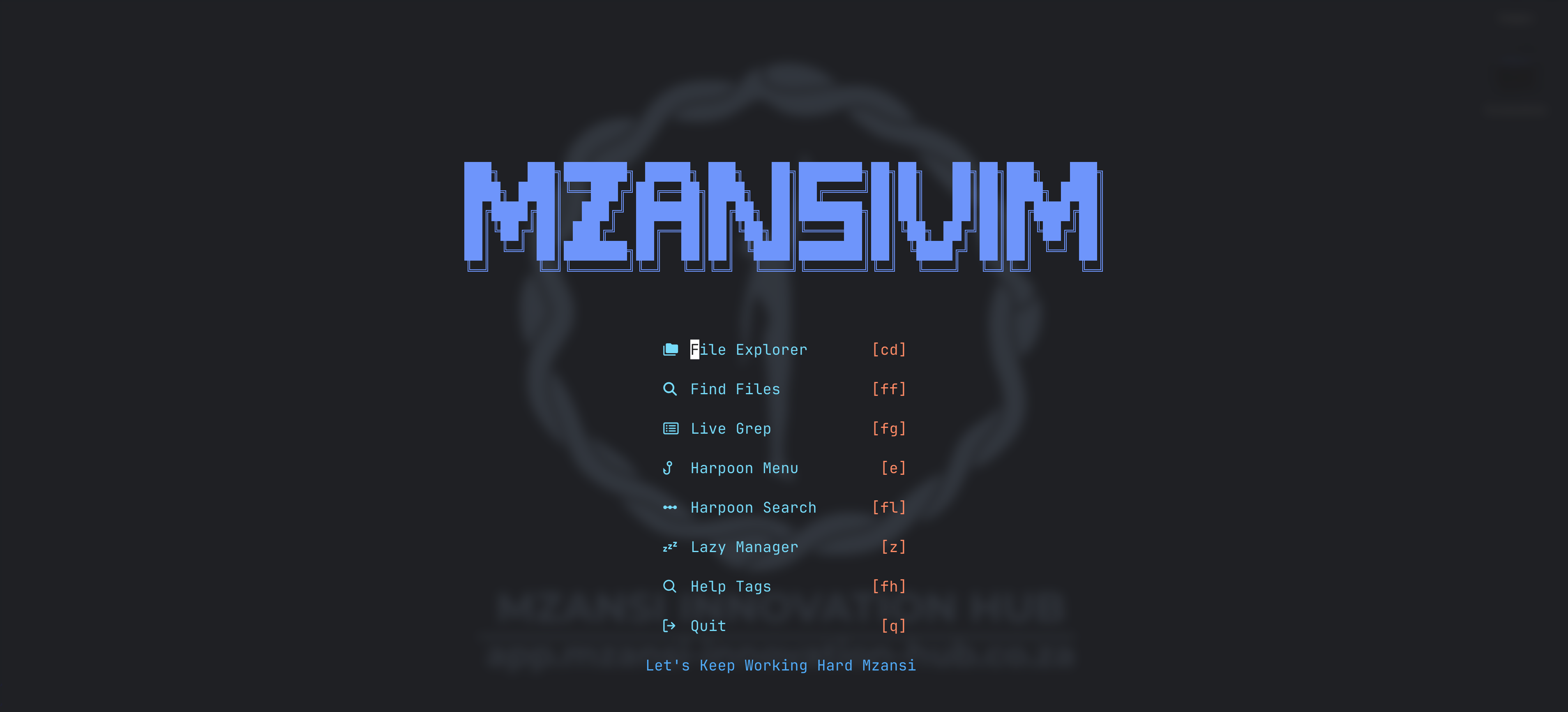
A pre-configured, performance-oriented Neovim setup designed to get you from zero to coding in minutes. Built for local developers who want a powerful IDE experience without the manual overhead of a 500-line init.lua.
Get Started
Prerequisites
To ensure all plugins (LSP, Tree-sitter, and Telescope) function correctly, please install the following:
- Neovim (v0.10+ recommended)
- Git (For cloning the repo and managing plugins)
- Tree-sitter-cli (For syntax highlighting)
- Ripgrep (Required for Telescope live grep)
- Yazi (Required for file expolorer)
- Node & NPM (Required for various LSP servers like
htmlandeslint) - Go (Required for certain internal tools)
- LazyGit (Required for LazyGit)
For the best results, we recommend you install and use the Ghostty terminal with the following configuration:
theme = Adwaita Dark
font-size = 18
background-opacity = 0.85
background-blur-radius = 20
Installation
1. Prepare Configuration Directory
Depending on whether you have an existing setup, follow the appropriate step below:
For a Fresh Install: If you have never configured Neovim, create the configuration folder:
mkdir ~/.config/nvim
For an Existing Setup: If you have configured Neovim already, create a backup folder:
mv ~/.config/nvim ~/.config/nvim.bak
mkdir ~/.config/nvim
2. Clone the Repository
Clone the Mzansi Vim configuration into your config folder:
cd ~/.config/nvim
git clone https://git.mzansi-innovation-hub.co.za/yaso_meth/mzansi_vim.git .
3. Initialize
Simply launch Neovim:
nvim
Key Features
- LSP & Auto-completion: Powered by
mason.nvimandnvim-cmp, featuring out-of-the-box support for Python, Lua, Docker, SQL, and more. - First-Class Flutter Support: Deep integration via
flutter-tools.nvimfor a seamless mobile development workflow. - Fast Navigation: Includes
Harpoonfor rapid file switching andTelescopefor fuzzy finding across your project. - Modern Aesthetics: Features the
tokyonightcolor scheme with enabled transparency andlualinefor a sleek, functional status bar. - Syntax Highlighting: Robust parsing for over 15 languages via
nvim-treesitter. - Git Integration: Quick access to Git commands using
vim-fugitive. - Custom Dashboard: A branded startup screen via
dashboard-nvimwith quick-access shortcuts to your most common actions.
cdcscdscsd
Essential Keybindings
The Leader Key is set to Space.
Core Motions & Editing
| Action | Keybinding | Description |
|---|---|---|
| Move Left | h |
Move the cursor one character to the left. |
| Move Down | j |
Move the cursor down one line. |
| Move Up | k |
Move the cursor up one line. |
| Move Right | l |
Move the cursor one character to the right. |
| Word Forward | w |
Jump forward to the start of the next word. |
| Word Backward | b |
Jump backward to the start of the previous word. |
| End of Word | e |
Jump forward to the end of the current/next word. |
| Line Start | 0 |
Jump to the absolute beginning of the current line. |
| Line End | $ |
Jump to the end of the current line. |
| File Top | gg |
Jump to the first line of the file. |
| File Bottom | G |
Jump to the last line of the file. |
| Internal Yank | y |
Copy selected text (Visual mode) inside Neovim only. |
| Internal Paste | p |
Paste text (Normal mode) last copied/deleted inside Neovim. |
| System Copy | <leader>y |
Copy selected text (Visual mode) to the system clipboard. |
| System Paste After | <leader>p |
Paste from system clipboard after cursor (Normal/Visual) |
| System Paste Before | <leader>p |
Paste from system clipboard before cursor (Normal/Visual) |
Note: Dashboard keybindings are active only on the dashboard screen and do not require the leader key prefix.
Dashboard
| Action | Keybinding | Description |
|---|---|---|
| File Explorer | cd |
Open Yazi directly from the dashboard. |
| Find Files | ff |
Fuzzy find files via Telescope. |
| Live Grep | fg |
Search across all files via Telescope. |
| Harpoon Menu | e |
Open the Harpoon quick menu. |
| Harpoon Search | fl |
Search Harpoon marks via Telescope. |
| Lazy Manager | z |
Open the Lazy plugin manager. |
| Help Tags | fh |
Search Neovim help tags via Telescope. |
| Quit | q |
Quit Neovim. |
Navigation & Searching
| Action | Keybinding | Description |
|---|---|---|
| Dashboard | <leader>; |
Open the MzansiVim Dasboard. |
| File Explorer (Current Directory) | <leader>cd |
Open the Yazi explorer in current directory. |
| File Explorer (Working Directory) | <leader>cw |
Open the Yazi explorer in working directory. |
| Find Files | <leader>ff |
Fuzzy find files in your project. |
| Live Grep | <leader>fg |
Search for specific text across all files. |
| Help Tags | <leader>fh |
Search through Neovim help documentation. |
Yazi (File Explorer)
| Action | Keybinding | Description |
|---|---|---|
| File Explorer | <leader>cd |
Open the Yazi explorer in file location. |
| File Explorer | <leader>cw |
Open the Yazi explorer in working directory location. |
| Navigation | h / j / k / l |
Move left (parent folder)/ down/ up/ or right (enter folder/open file). |
| Open file | Enter |
Open file in new buffer. |
| Open File (Horizontal Split) | Ctrl + x |
open file in horizontal split. |
| Open File (Vertical Split) | Ctrl + v |
open file in horizontal split. |
| Add file/ folder | a |
Create a new file (append / for a folder). |
| Rename file/ folder | r |
Rename the highlighted file or directory. |
| Delete file/ folder | d |
Move the selected item(s) to the system trash. |
| Permanent Delete file/ folder | D |
Delete item(s) permanently (skips trash). |
| Select file/ folder | space |
Toggle selection for the current file (allows batch actions). |
| Bulk Select file/ folder | v |
Enter visual mode to select multiple files with j/k |
| Copy / Cut | y / x |
Copy (Yank) or Cut the selected files. |
| Paste | p |
Paste copied or cut files into the current directory. |
| Help Menu | F1 |
Open the help menu for keybindings. |
| Close / Quit | q |
Exit Yazi and return to the Neovim buffer. |
Harpoon (Quick-Switching)
| Action | Keybinding | Description |
|---|---|---|
| Add File | <leader>a |
Mark the current file in Harpoon. |
| Harpoon Menu | Ctrl + e |
View and manage your marked files. |
| Harpoon Find | <leader>fl |
Use Telescope to search your Harpoon list. |
| Quick Nav | Ctrl + h/t/n/s |
Jump instantly to Harpoon files 1, 2, 3, or 4. |
LSP & Development
| Action | Keybinding | Description |
|---|---|---|
| Hover Docs | Ctrl + k |
Display documentation for the symbol under cursor. |
| Go to Definition | gd |
Jump to the source code of a function/variable. |
| Code Actions | <leader>ca or Ctrl + . |
Show available code actions, fixes or refactors. |
| Align File | <leader>af |
Auto align file. |
| References | gr |
List all places where a symbol is used. |
| Rename | <leader>rn |
Rename all occurrences of the symbol. |
Flutter Development
| Action | Keybinding | Description |
|---|---|---|
| Run App | :FRun |
Start the flutter application. |
| Run Target | :FRunT <path to file> |
Run Flutter with a specific target file (e.g., main_dev.dart). |
| Hot Reload | :FReload |
Trigger a Hot Reload for the running app. |
| Hot Restart | :FRestart |
Trigger a Hot Restart for the running app. |
| Quit App | :FQuit |
Stop the running Flutter session. |
| List Emulators | :FEmulators |
Show and launch available emulators. |
| List Devices | :FDevices |
Show a list of available physical/virtual devices. |
| Toggle Logs | :FLogs |
Open or close the Flutter Dev Log split. |
| Clear Logs | :FLogsClear |
Clear the current Flutter Dev Log buffer. |
| Clean Project | :FClean |
Execute flutter clean in split terminal. |
| Pub Get | :FPubGet |
Fetches project dependencies. |
| Start DevTools | :FDevToolsStart |
Start the local Flutter DevTools server |
| Open DevTools | :FDevToolsOpen |
Open Flutter DevTools in your default browser. |
| Build Runner | :FBuild |
Execute dart run build_runner build in split terminal. |
| Watch Runner | :FWatch |
Execute dart run build_runner watch in split terminal. |
Copilot Code Completion
| Action | Keybinding | Description |
|---|---|---|
| :Accept suggestion | Ctrl + l |
Accept suggested code from Copilot. |
| :Setup Copilot | :Copilot setup |
Authenticate and enable GitHub Copilot (disable cmd popups before proceeding with setup). |
| :Enable Copilot | :Copilot enable |
Enable GitHub Copilot after :Copilot disable. |
| :Disable Copilot | :Copilot disable |
Disable GitHub Copilot inline suggestions. |
| :Check Status of Copilot | :Copilot status |
Check if GitHub Copilot is operational and report on any issues. |
| :Signout of Copilot | :Copilot signout |
Sign out of GitHub Copilot. |
Diagnostics (Errors & Warnings)
| Action | Keybinding | Description |
|---|---|---|
| Show Error | <leader>e |
Open a floating window with the full error under cursor. |
| Next Error | ]d |
Jump to the next diagnostic in the file. |
| Previous Error | [d |
Jump to the previous diagnostic in the file. |
| Error List | <leader>el |
Load all diagnostics into the error list. |
| Close Error List | :q <Enter> |
Close the error list window while active. |
Window Management
| Action | Keybinding | Description |
|---|---|---|
| Cycle Windows | Ctrl + w w |
Cycle focus between open windows. |
| Move Down | Ctrl + w j |
Move focus to the window below. |
| Move Up | Ctrl + w k |
Move focus to the window above. |
| Move Up | Ctrl + w s |
Duplicate window (horizontal). |
| Move Up | Ctrl + w v |
Duplicate window (Verticle). |
| Move Up | Ctrl + w q |
Close active window. |
| Jump & Stay | Ctrl + w + Enter |
Open quickfix entry in a split, keeping quickfix focused. |
Commenting
| Action | Keybinding | Description |
|---|---|---|
| Toggle Comment | Ctrl + / |
Comment or uncomment the current line (normal mode). |
| Toggle Comment | Ctrl + / |
Comment or uncomment the selection (visual mode). |
Editor Essentials
| Action | Keybinding | Description |
|---|---|---|
| Confirm Completion | Enter |
Accept the current suggestion in the popup menu. |
| Confirm Completion | Enter |
Accept the current suggestion in the popup menu. |
| Confirm Completion | Enter |
Accept the current suggestion in the popup menu. |
| Scroll Docs | Ctrl + f / b |
Scroll up/down in the LSP documentation window. |
Lazygit Navigation & Commands
| Action | Keybinding | Description |
|---|---|---|
| Switch Panels | H / L or ← / → |
Move between the left side panels (Status, Files, Branches, Commits, Stash). |
| Navigate List | J / K or ↑ / ↓ |
Move up and down within a panel's list. |
| Quit | q |
Close lazygit. |
| Help Menu | ? |
Open the contextual keybindings help menu. |
Lazygit Files Panel
| Action | Keybinding | Description |
|---|---|---|
| Stage / Unstage File | Space |
Toggle staging for the highlighted file. |
| Stage All | a |
Stage or unstage all changes in the working directory. |
| Commit Changes | c |
Open the commit message prompt. |
| Discard Changes | d |
Open options to discard local changes to the file. |
| Ignore File | i |
Add the highlighted file to .gitignore. |
| Stash Changes | s |
Stash current changes. |
Lazygit Branches Panel
| Action | Keybinding | Description |
|---|---|---|
| Checkout Branch | Space |
Switch to the highlighted branch. |
| New Branch | n |
Create a new branch off the currently selected one. |
| Delete Branch | d |
Delete the highlighted branch. |
Lazygit Remotes, Push & Pull
| Action | Keybinding | Description |
|---|---|---|
| Pull | p |
Fetch and pull changes from the remote branch. |
| Push | P |
Push current commits to the remote branch. |
| Force Push | F |
Safe force push (--force-with-lease). |
Additional information
For more details about Mzansi Vim, including usage instructions and updates, please visit the MIH Gitea repository.
Contributing
Contributions are welcome! If you'd like to improve the package, please fork the repository, make your changes, and submit a pull request. For major changes, please open an issue first to discuss what you would like to change.
Reporting Issues/ Feature Requests
If you encounter any bugs or have feature requests, please log an issue on the MIH Gitea Issues page. Provide as much detail as possible to help us address the problem promptly.
Support and Response
We strive to respond to issues and pull requests in a timely manner. While this package is maintained voluntarily, we appreciate your patience and community involvement.
If you would like to support the MIH development team directly, please feel free to contribute to the MIH Project via DonaHub
Thank you for using the Mzansi Vim!